Administration of Roles and Permissions
Contact Expert v6.1 for Skype for Business Server
Introduction
This chapter provides detailed description of the role management as well as the list of permissions available for assignment to the individual resource types.
A high level overview of the organizational structure and the role based access control features Contact Expert provide is described in the Organizational Hierarchy And Access Control section.
Role Management
Role management is the creation, modification or occasional deletion of individual roles by privileged portal users. This allows an administrator or supervisor to decide what information can be accessed to what extent by who.
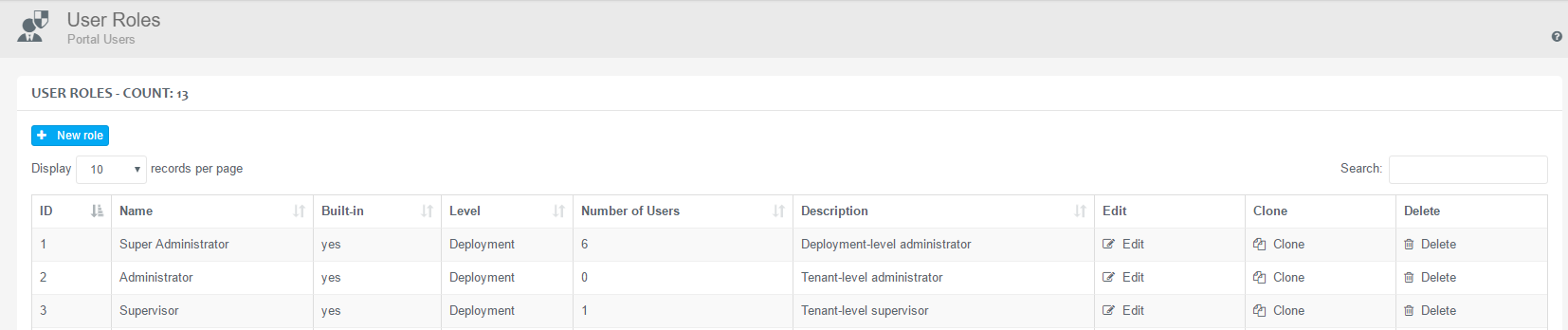
Navigate to Organization & Access →Portal Users→User Roles in order to manage roles.
This form shows all the available roles, the list of resource types and their permission options. Sufficient rights provide the ability to perform the following operations:
| New Role | Opens up the permission assignment form to allow the creation of new roles. |
| Edit | Opens up the permission assignment form of the selected role showing the existing permission assignments. |
| Clone | Choose this option if you want to set up a user role identical to an existing entry. |
| Delete | Choose this option to remove irrelevant or unused user roles. |
You can edit the name and description of the role on the General Properties page. The list of permissions and resource types are found on the Permissions tab. You can set the permissions to a resource type by check-marking the desired privileges for the eligible roles. If a permission is granted, it is indicated with a green check-mark. If the access is denied, it is indicated with a red X. If a permission cannot be edited, the control is disabled (the check-mark or X is greyed out and not clickable).
There are two requirements of managing a specific role:
- The user must have view/create/edit/delete permission for the Roles resource type.
- The user must have a role with a permission set wider than the specific role's permission set. In other words, a role with a wider permission set cannot be edited by a user having a role with a fewer set of permissions.
Built-in Roles
Built-in roles
Built-in roles are predefined roles that cannot be deleted or modified. These are typically the Super Administrator, Administrator and the Supervisor roles. However, new ones can always be created to fit custom needs.
Administrator Role
The Administrator role includes the ability to reach functions and
resources based on Tenant level, but it has a certain amount of
limitation. It is referred to as Tenant administrator.
This role is specifically created for a high-level management position
whose main perspective is managing and maintaining system parameters and
contact center data related to its tenant.
Excluded Resources from the Administrator Role
The following features are excluded from the list of permissions of the Administrator role (typically the ones related to infrastructural settings):
- ACD Plugins
- Deployments
- Domains
- Email Connections
- Gateways
- Global Parameters Create and Delete permissions
- Hunt Groups
- IVRs
- Licenses
- Recording Channels
- Service Endpoints
- Storages
- Tenants
Super Administrator Role
The Super Administrator has all available permissions assigned by default. It is referred to as Deployment administrator.
The Contact Expert Portal menu structure and its functions are fully accessible if this role is assigned to a portal user.
Supervisor Role
The Supervisor is a Tenant-level supervisor role containing a limited
set of permissions assigned.
This role is specifically created for a low-level management position
whose main perspective is based on authority over the call center
agents.
Available Resources for the Supervisor Role
The following features are included in the permission set of the Supervisor role:
- Agents
- Contacts View option
- Contact History
- Recordings
- Reports
- Resource Updates
- Thresholds
- User Notes
Assigning Roles to Users
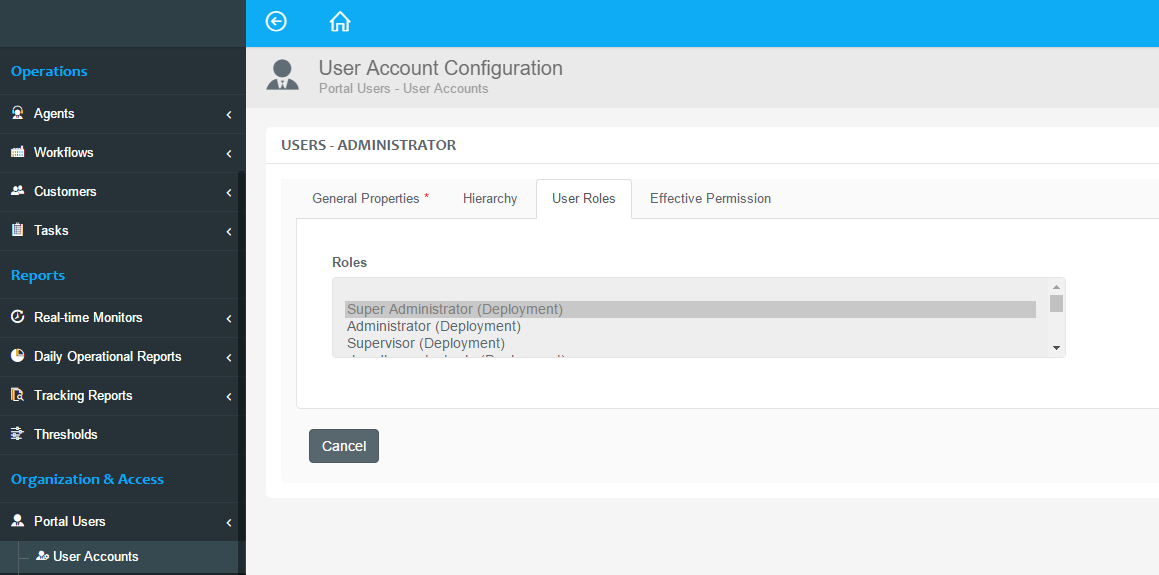
Role assignment is the act of enabling one or more roles for a user. As a matter of fact, the designated user will own all the permissions that are defined within the role or roles. For example, John Demo gets the Supervisor role, thus he will own all the privileges that are determined in the Supervisor role.
Roles can be assigned to users on the *Organization & Access →Portal Users→User Accounts *→Edit→User Roles tab.
There are two requirements for assigning a specific role to a specific user:
- The acting user – performing the assignment – must have view/create/edit/delete permission for the Users resource type.
- The acting user must have a role with a permission set wider than the target user's effective permission set. In other words, a user having a wider effective permission set cannot be edited by a user having fewer set of effective permissions.